Interface Overview
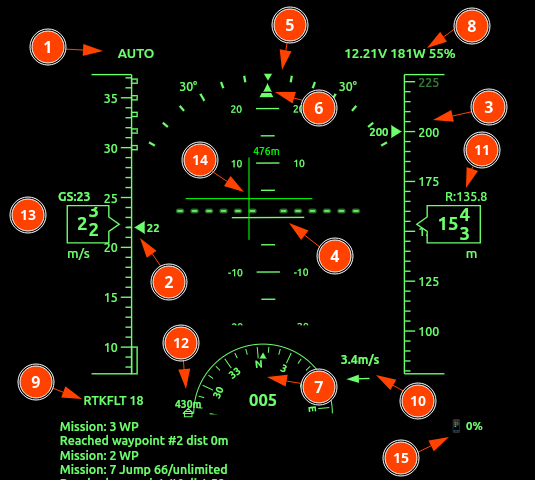
- Flight Mode & Status: Located top-left. Displays current state (e.g.,
AUTO). Displays also the state of Safety or Arming. - Speed Tape: Shows Indicated Airspeed (IAS). Long boxed areas represent stall speeds; checkered areas indicate overspeed limits. Units are selectable.
- Altitude Tape: Displays current altitude. Units can be m/s or feet.
- Artificial Horizon (AHI): Central attitude indicator. Features a pitch ladder (horizontal lines) and a fixed aircraft symbol to show relative pitch and roll.
- Bank / Roll Scale: Displays the current roll angle. The moving triangle (pointer) indicates degrees of bank.
- Slip/Skid Indicator: Small bar below the bank pointer.
- Heading Indicator: A compass rose showing degrees (e.g.,
165). - Battery & Power Status: Top-right. Shows Voltage (
V), Power (W), and Throttle percentage. Blinks during low-voltage, faster during critical voltage. - GPS / RTK Status: Bottom-left. Displays fix type (e.g.,
RTKFLT) and satellite count (e.g.,18), flashes in case of GNSS loss. - Wind Indicator: Shows wind speed and an arrow representing direction relative to the current heading.
- Rangefinder Altitude: Displays precise distance to ground if a Radar,LiDAR or sonar sensor is active.
- Home Indicator: Indicates distance and bearing back to the launch/home point.
Detailed Feature Descriptions
1. Speed & Altitude Tapes
The tapes are dynamic vertical scales.
- 13: Ground Speed (GS): Displayed numerically above the speed tape.
- Target Bugs: Visual markers on the tape indicate set cruise speeds or target altitudes.
2. Navigation Display (Active Flight Plan)
When a navigation is active, the following elements appear:
- 14: Flight Director (FD): Crosshair or bar symbols on the AHI guiding the pilot to the target path.
- Waypoint Info: Bearing and distance to the next waypoint are displayed as overlays.
3. Connection & Safety Alerts
- MAVLink Status: If the data link is interrupted, a prominent “MAVLink lost” warning appears in the lower right with a disconnection timer.
- App Status: Similar warning for the mobile/tablet application connection.
4. Hardware Monitoring
- 15: Device Battery: The UI includes icons for the battery level of both the Rokid Glasses and the connected telemetry phone/tablet.
- Status Log: The bottom area (not shown in snippet) scrolls
STATUSTEXTmessages from the Flight Controller, providing real-time diagnostic feedback.